Workflow in JET - for your understanding
1. Step: Customer goes to Landing Page and places the order
2. Step: The order is being pulled in our Database
3. Step: JET is only a platform to visualize the data from the Database
4. Step:
- Some Partners work directly in Jetand update the information in there
- Belgium, France, Italy
- Other partners work with Excel File and we upload it to our Database
- Eltex
- Some are already integrated via API = real-time updates (our data should be the same to their data)
- Guidion (starting this week 09/03/2026)
- Frontier
Work with JET - Support Team
Overview - What does the SUPPORT Team do in Jet?
- Check for the Clientin the system via Starlink Account number, Name or other data
- If the client is NOT in the system -> No Order with SBPM was created and the client still need to do it with the link from Starlink
- Update Informationthat Support gets through the Ticketing System from the client
- Cancel Order
- Re-activate Order (through Felipe)
- Adding Notes
How do we do this?
1. Go to JET
2. You will see an overview of all the orders so far
3. Click on GO TO ORDERS PANEL on the right top

4. You will see the possible Search Fields

5. Here you can Search for any of these fields to find the client
6. Once you have found the client, you will see this the order in the Order Panel:

7. You can click on it and the entire Order Opens:
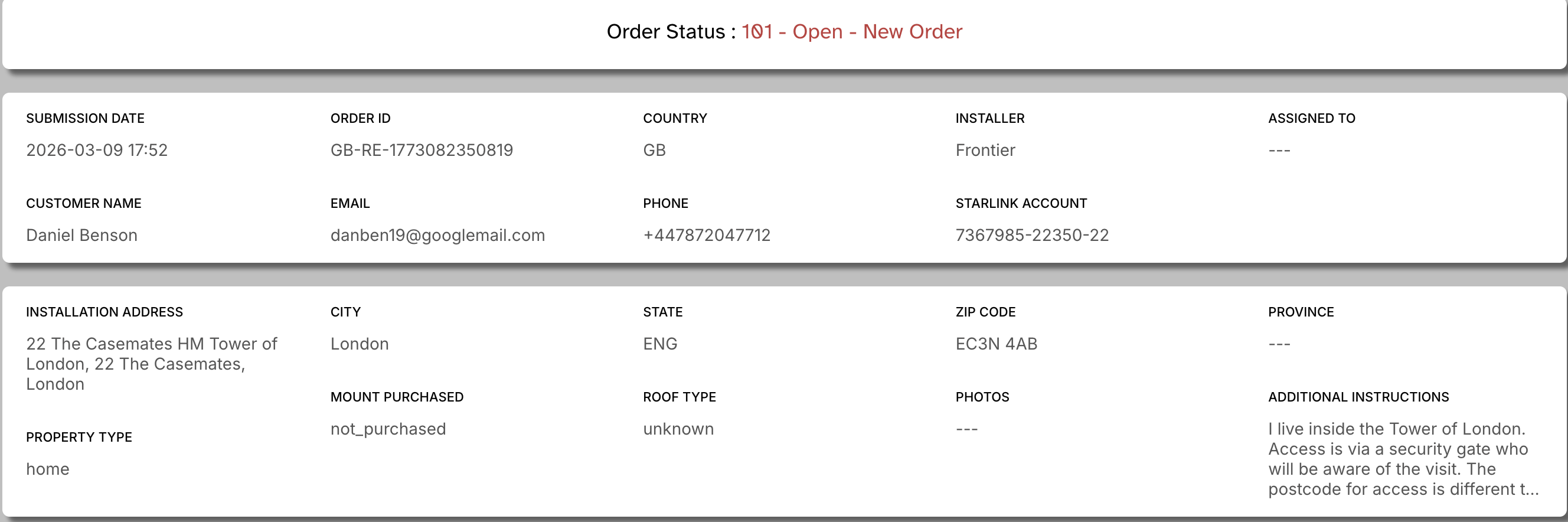
8. Use this Data to fill in the fields on the right side in Freshdesk
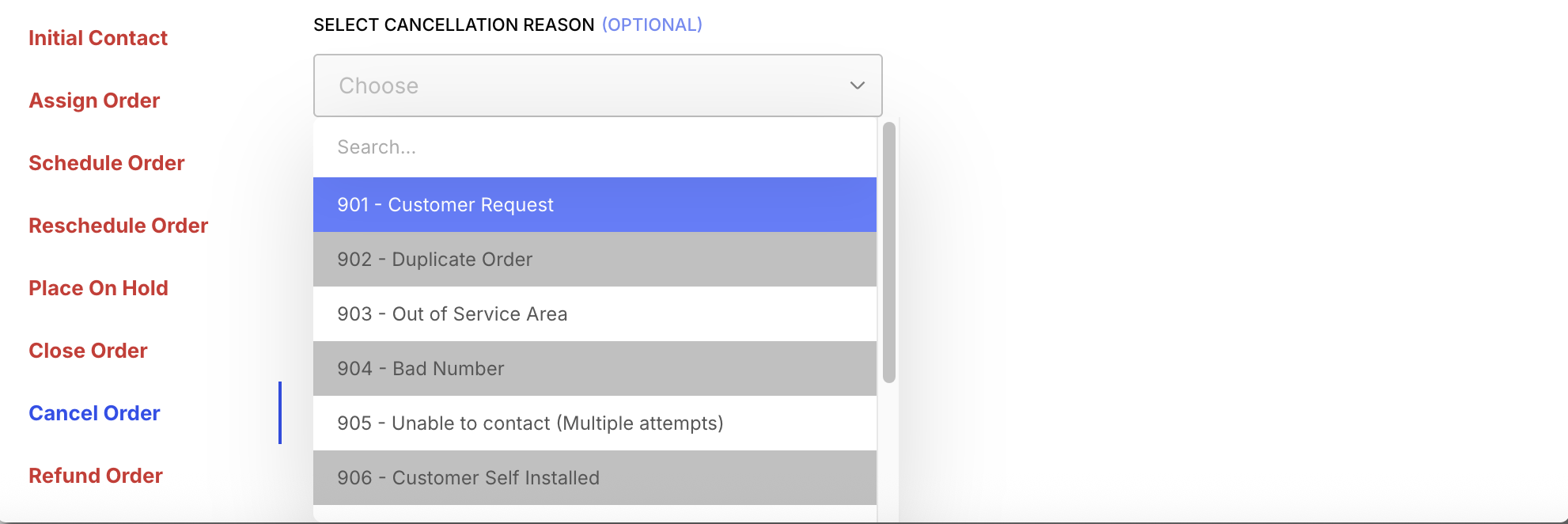
9. On the bottom of this page, you can cancel the the order and choose the reason:
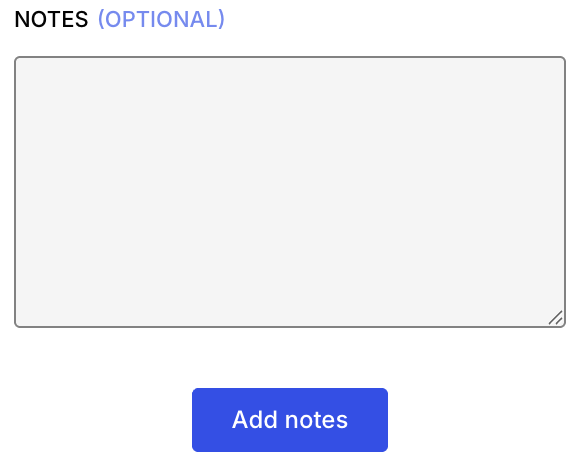
10. Leave a note why you cancelled the order:
Like this: VD 09/03/2026 - Customer had 3 orders open, so I cancelled this one
Your Initials, date and reason
What does the Status in Jet mean?
HERE you can see the EXCEL File with all of the possible Status Meanings
Was this article helpful?
That’s Great!
Thank you for your feedback
Sorry! We couldn't be helpful
Thank you for your feedback
Feedback sent
We appreciate your effort and will try to fix the article